The saci.cc extension for Chrome and Firefox
The site wants an email to finish signing up. With the saci.cc extension, you click the icon, copy a temporary address and the email shows up in the popup itself, without opening another tab. The verification code and the confirmation link are ready to use, and you can fill in the field with a right-click.
How to install
- Chrome, Edge and Brave: install it from the Chrome Web Store. In Edge, allow extensions from other stores when it asks. It needs Chrome 127 or newer.
- Firefox: use the "Add to Firefox" button on the home page. Firefox asks whether you allow saci.cc to install the extension; just confirm. It isn't in Mozilla's store, but every version is signed by Mozilla, and Firefox updates it on its own. It needs Firefox 140 or newer.
It's free and needs no sign-up. It speaks English, Portuguese and Spanish, following your browser's language.
What it does
An address in one click
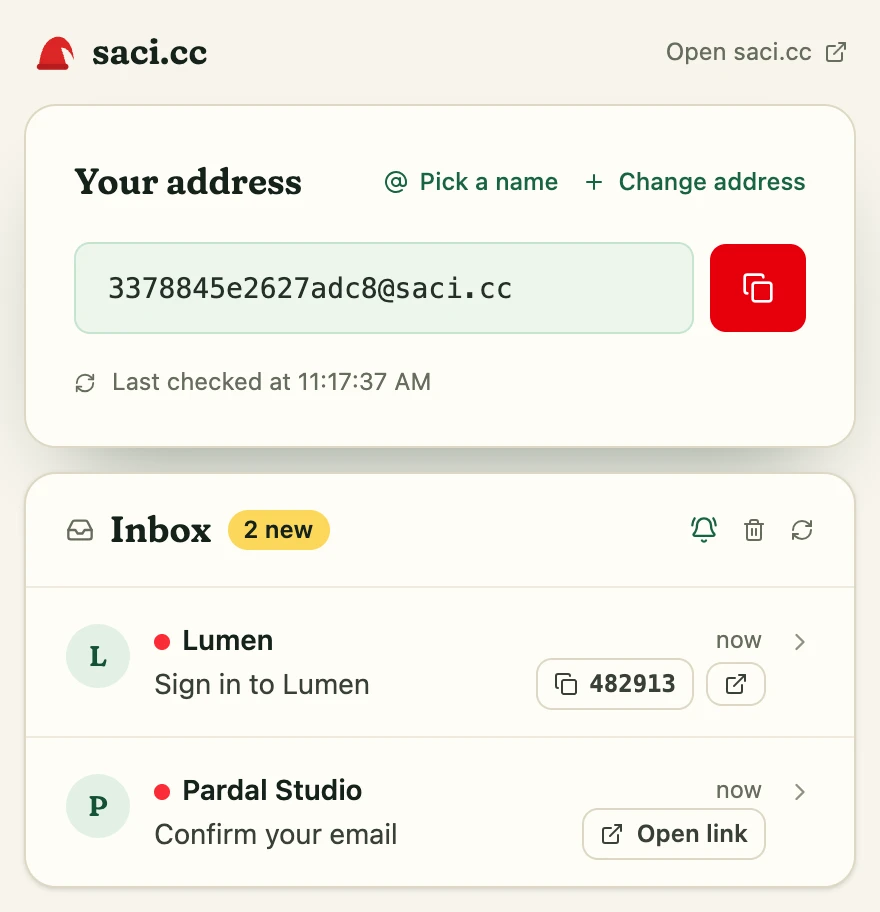
The first time you open the popup, you get a random address, like 3378845e2627adc8@saci.cc. The red button copies it. Pick a name creates an address with the name you want, and Change address makes another random one. The extension's address is separate from the one you use on the site.
The inbox in the popup
Emails show up in the popup with the sender, subject and time. Click one and it opens right there, with the HTML, the plain-text version and the attachments to download. You can delete an email or empty the inbox.
The code and the link, ready
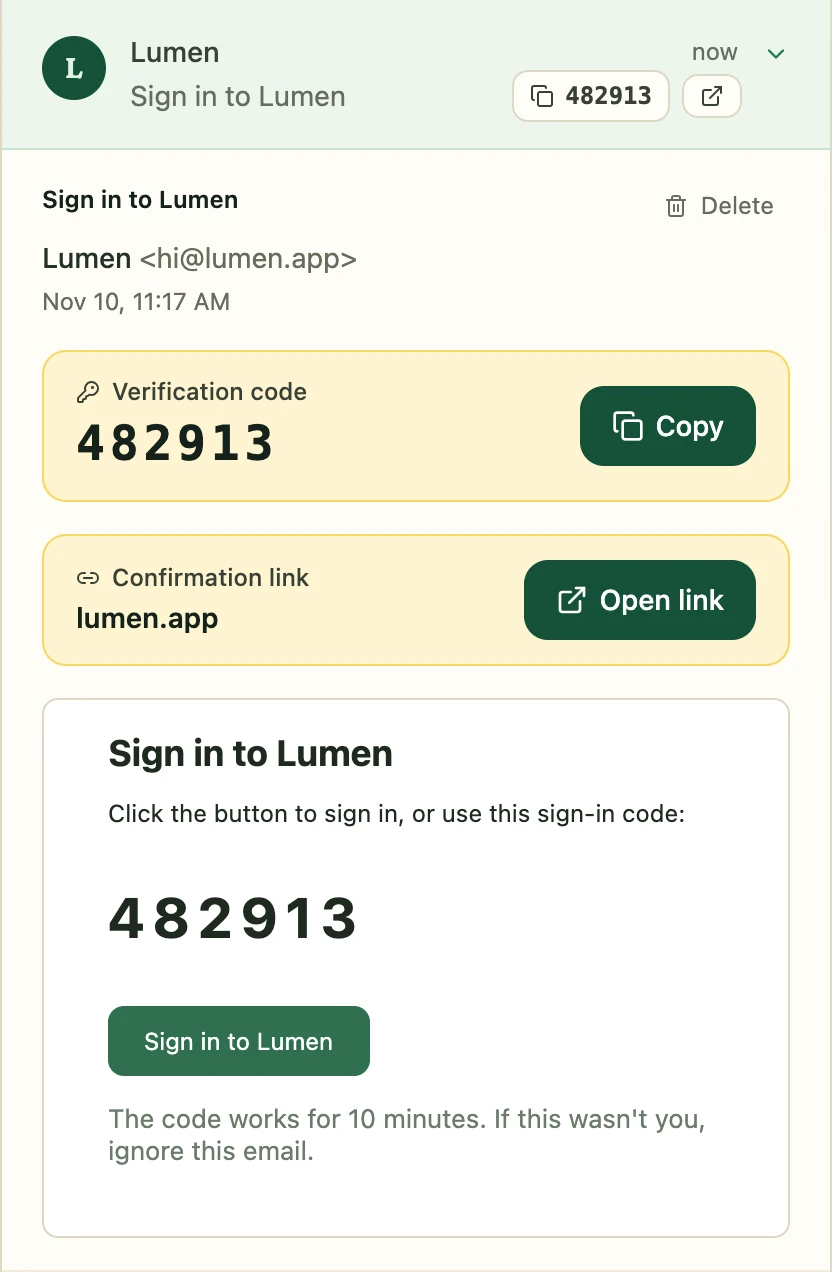
When an email has a verification code or a link to confirm the address, sign in or reset the password, its row shows a button to copy the code or open the link in a new tab. You don't even need to open the email. When you do, the code and the link are at the top:
Notifications with the popup closed
The extension checks the inbox every minute, even with the popup closed. When an email arrives, you get a system notification with the sender, the subject and the code, if there is one. Clicking it copies the code; if the email only has a link, it opens the link; if it has neither, it opens the popup. The icon shows how many emails you haven't opened yet. The bell at the top of the inbox turns notifications on and off.
Fill in with a right-click
Right-click a text field and choose Fill in a saci email to put the address there. Once a code arrives, Fill in the code shows up too, with the code in the item's name. The extension only touches the page at that moment, in the field you clicked.
Permissions
- Storage: keeps the address, the emails you've opened, the latest code and whether notifications are on.
- Alarms: checks the inbox every minute with the popup closed.
- Notifications: the new-email notifications.
- Context menus, active tab and scripting: the right-click items, which fill in only the field you clicked, in that tab, when you pick the item.
- Clipboard: copies the code when you click a notification.
- In Chrome, offscreen document: a hidden page that copies the code and runs the bot check, which Chrome's service worker can't do on its own.
It doesn't read the pages you visit or ask for access to other sites.
Privacy
The site's rules apply. Emails are deleted about a day after they arrive. There's no password: anyone who knows an address can see its inbox, which is why random addresses are long. Don't use it for important accounts, banking or anything private. To tell people from bots, the extension uses Cloudflare Turnstile, an invisible check. The details are in the privacy policy.
Questions
- Does it work in Safari? No, only in the browsers above.
- On a phone? No. On a phone, use the site, which works the same way.
- Can I use the same address on the site and in the extension? They're separate addresses, but you can open any address on the site by picking the same name with Pick a name. Keep in mind a picked name is easy to guess.
- Does it cost anything? No, and there's no sign-up.
The post on confirmation links tells more about how saci.cc finds the code and the link. If something doesn't work in the extension, write to oi@saci.cc.